On this page
What you can do with itHow it works: MCPStep 1: Add Postline as a connectorStep 2: Sign in and pick a workspaceStep 3: Ask for what you needOr use the assistant built into PostlineFrequently asked questionsWhat you can do with it
Once ChatGPT or Claude is connected to your Postline workspace, you can ask it to do the busywork in plain language:
- "Draft three posts announcing our pop-up shop on Saturday, one for each channel."
- "What's scheduled for next week?"
- "Move my drafts to the next free posting times."
- "Which posts did best in the last 30 days, and what do they have in common?"
- "Make a preview link for Thursday's post so I can send it to the client."
The AI app reads your channels, posts and analytics, and creates or changes posts in your workspace, the same way you would in the app.
How it works: MCP
MCP (Model Context Protocol) is an open standard that lets AI apps use outside tools. Postline runs an MCP server, so any AI app that supports MCP can connect to it: ChatGPT, Claude, Claude Code, Cursor, Gemini CLI and others.
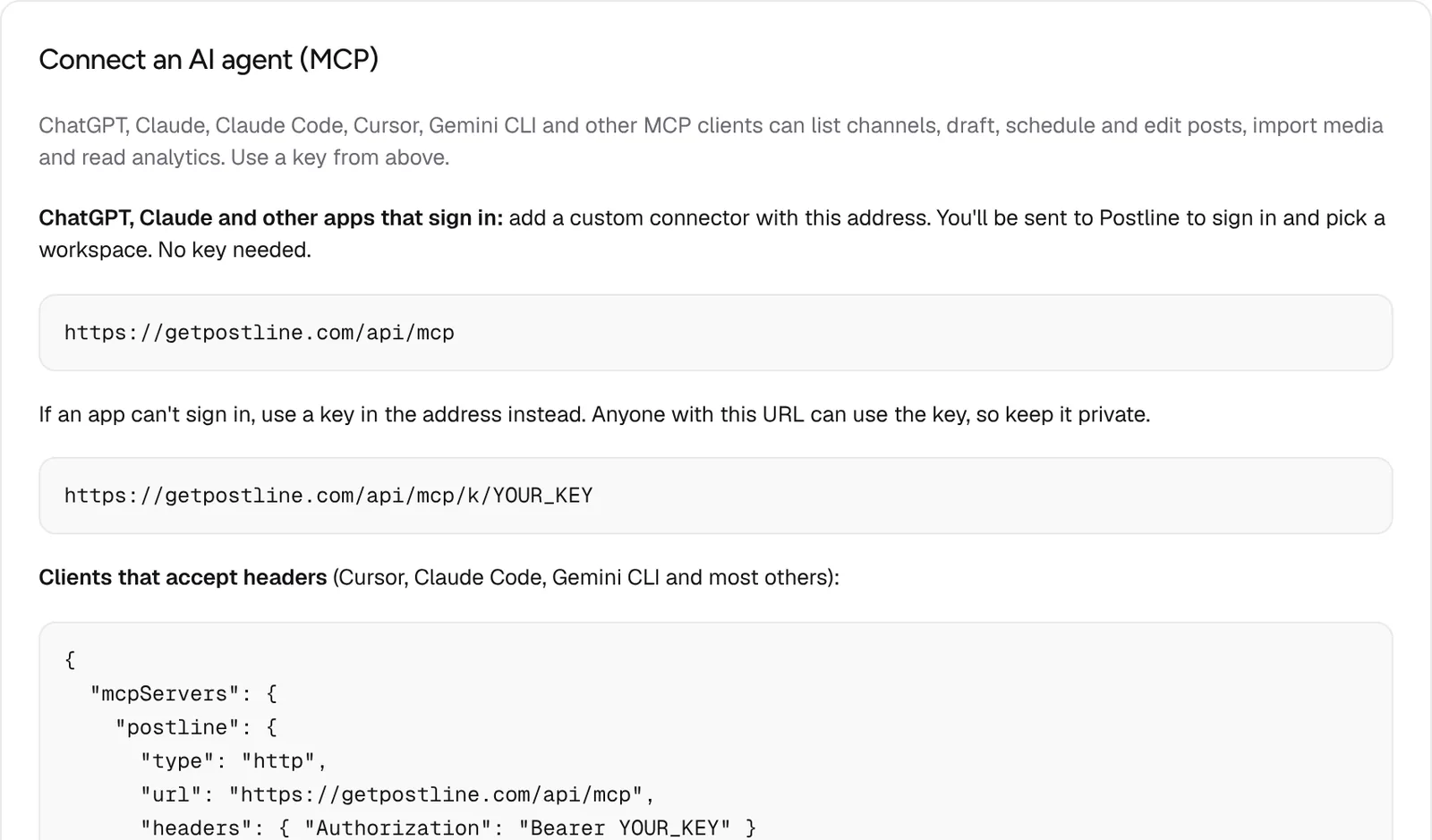
You'll find the address and setup steps for your workspace in Settings → API → Connect an AI agent (MCP).
Step 1: Add Postline as a connector
In your AI app, add a custom connector (also called an MCP server) with this address:
https://getpostline.com/api/mcp
Where that setting lives depends on the app and changes from time to time. In Claude it's under Settings → Connectors; in ChatGPT, look for connectors in the settings (some plans need developer mode turned on). For Claude Code, run:
claude mcp add --transport http postline https://getpostline.com/api/mcp
Step 2: Sign in and pick a workspace
The AI app sends you to Postline. Sign in if you aren't already, pick the workspace the app may use and choose Allow. That's it: no API key to copy. To disconnect the app later, go to Settings → Account → Connected apps.
The AI app acts as you. It can do only what your role allows, and if your workspace requires approval for editors, posts it schedules wait for approval like yours do.
Step 3: Ask for what you need
Start with something small to see how it works, like "List my channels". Then try a real task. A few tips for good results:
- Give it the facts. "Our pop-up shop is on Saturday from 10am to 4pm at the Riverside market" gets you much better drafts than "a post about our pop-up".
- Say which channels. "One post for LinkedIn and a shorter one for X" saves a round of edits.
- Ask for drafts first. New posts are saved as drafts unless you ask the AI app to schedule them, so you can review everything in Postline before it goes out.
- Point it at images by link: "Use the photo at https://… for the Instagram post" imports it into your media library.
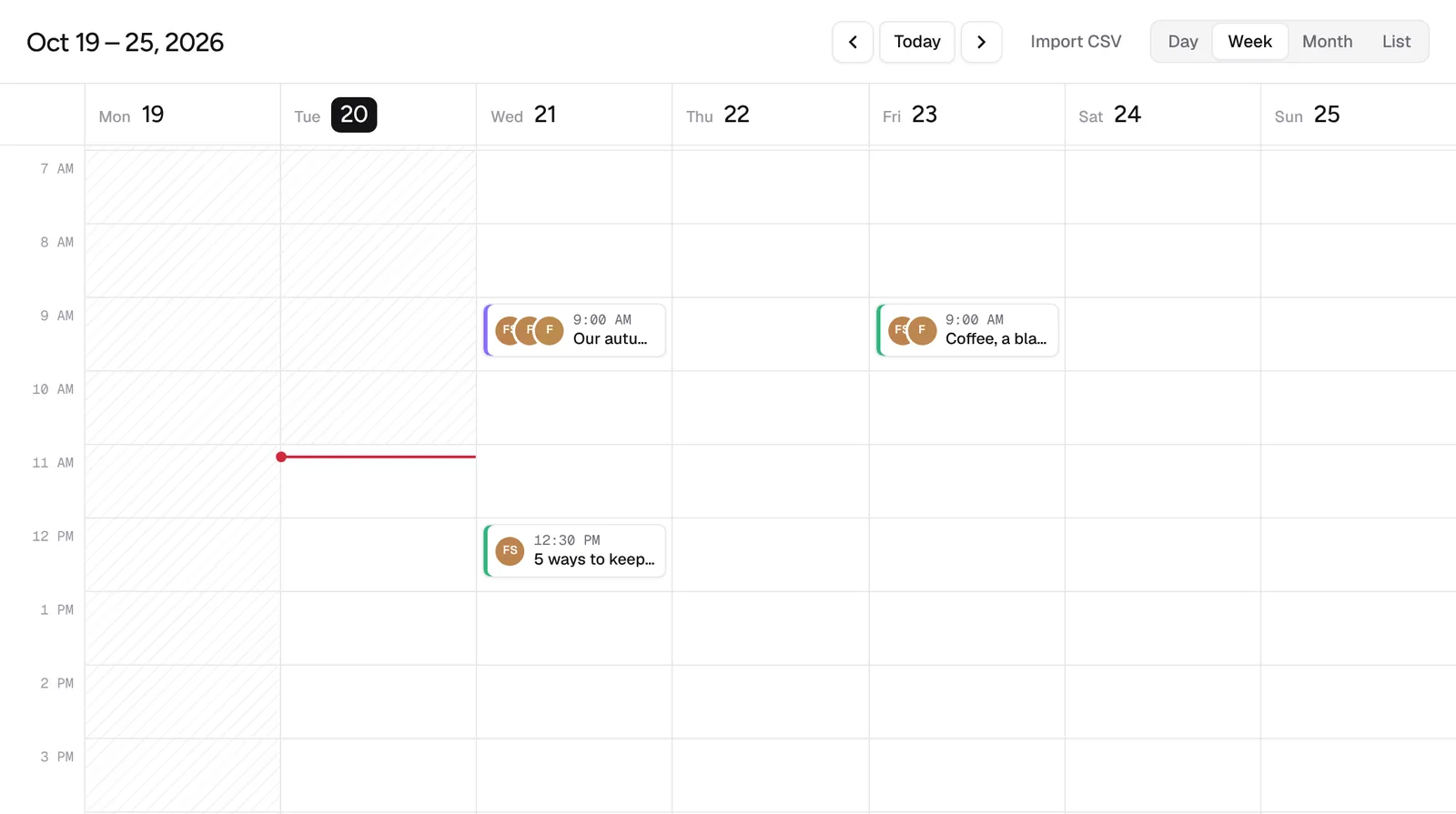
When it's done, open the calendar to check the drafts, make any changes, and schedule them.
Or use the assistant built into Postline
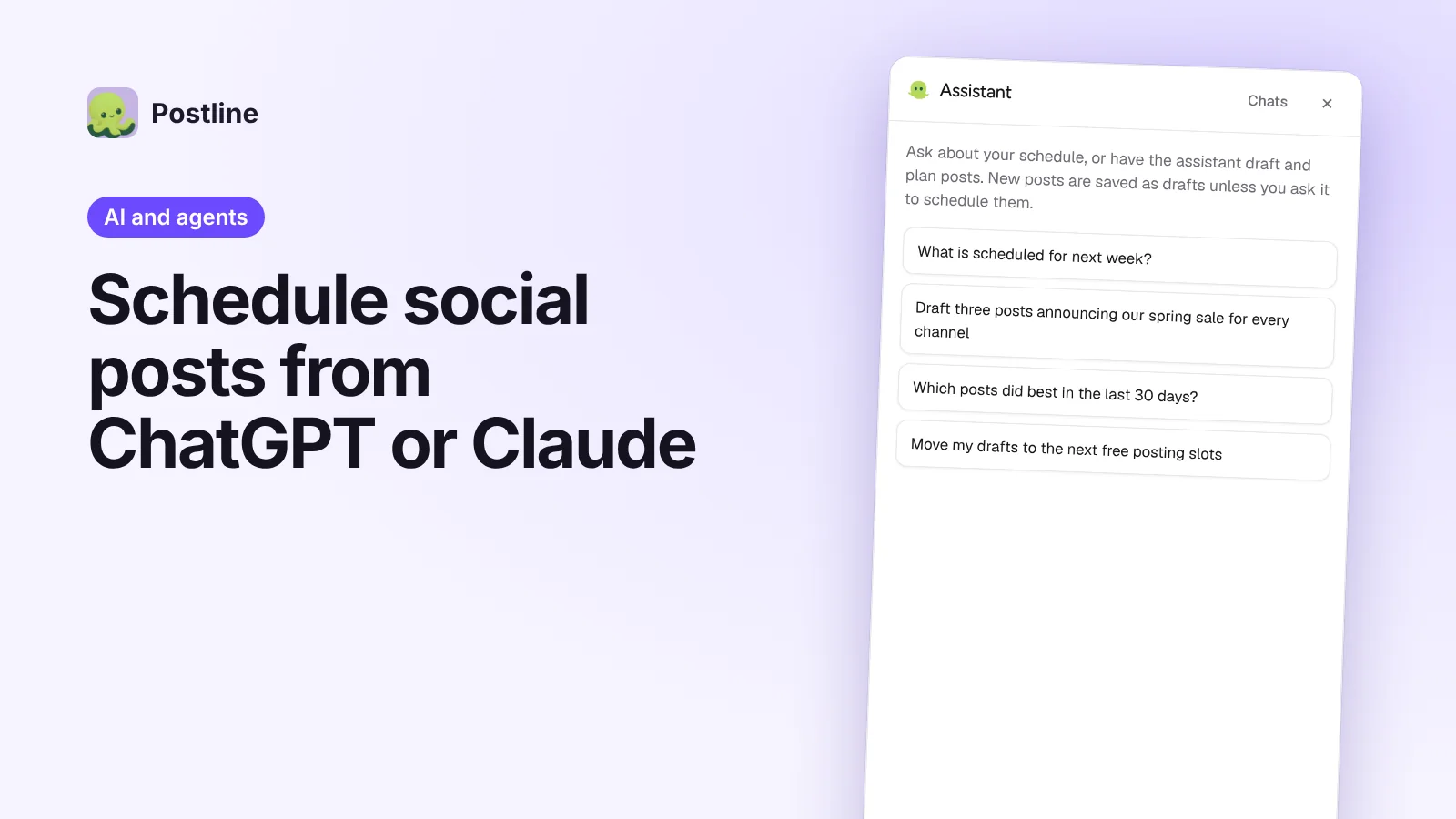
You don't need another app to try this. Postline has its own assistant: choose Assistant in the sidebar. It can do the same things as a connected AI app, and you can pick the channels a request is about with @ Channels or attach files from your media library with Attach.
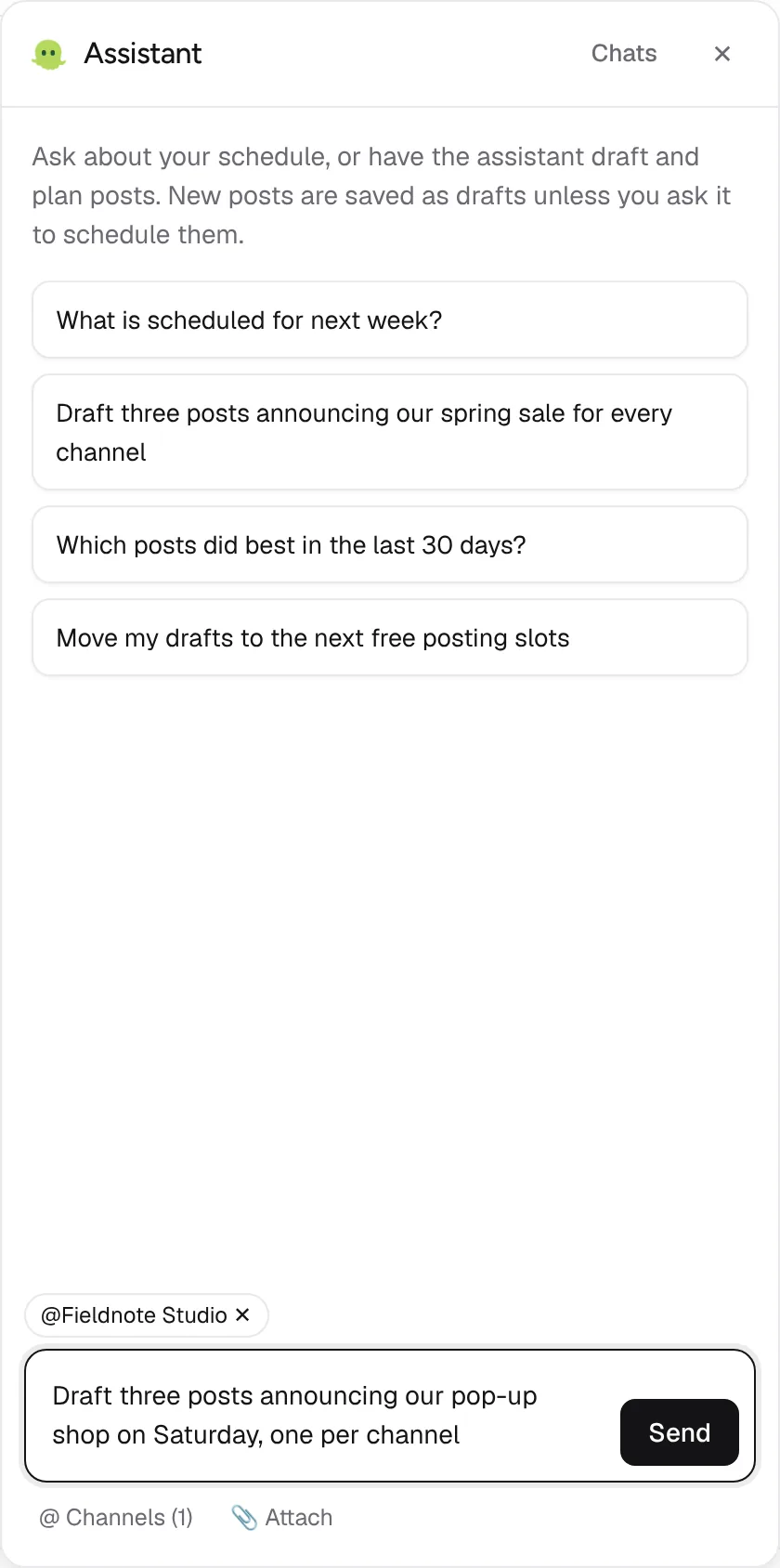
Your chats are saved, so you can pick up where you left off, and each answer has Copy, Try again and feedback buttons. The assistant uses AI credits from your plan; each message uses 5.
Frequently asked questions
Is it safe to let an AI app post for me?
The AI app can only do what your role in the workspace allows, it creates drafts unless you ask it to schedule, and you can disconnect it at any time in Settings → Account → Connected apps. If you want a second pair of eyes, turn on approval for editors in Settings → Workspace.
Which AI apps work with Postline?
Any app that supports MCP connectors, including ChatGPT, Claude, Claude Code, Cursor and Gemini CLI. Apps that can't sign in can connect with an API key instead; see MCP and AI agents.
Does it cost extra?
Connecting ChatGPT or Claude to Postline is included in every plan; the AI app itself is billed by its maker. The assistant built into Postline uses your plan's monthly AI credits.
Can the AI app see all my workspaces?
No. It only gets the workspace you picked when you signed in. To use another one, add the connector again and pick that workspace.

We build Postline, a social media scheduler for creators, teams and agencies. We write about planning, publishing and measuring social posts, and about how to get the most out of Postline.