On this page
Why plan a week at a timeStep 1: Give each day a themeStep 2: Set your posting times onceStep 3: Write each post onceStep 4: Tailor it per network, only where it mattersStep 5: Check the week on the calendarMake next week even fasterFrequently asked questionsWhy plan a week at a time
Posting every day doesn't have to mean thinking about posting every day. Most of the effort in social media is switching gears: finding an idea, writing it, finding an image, posting, then doing it all again tomorrow. Doing it once a week, in one sitting, cuts that down to a single session and leaves the rest of the week for everything else.
A week is also the right size. It's short enough that your plans don't go stale, and long enough that you can see the mix: are you only selling, or also teaching and showing what happens behind the scenes?
Step 1: Give each day a theme
A blank week is hard to fill. A week with a theme for each day fills itself. Pick three to five themes that suit your audience, for example:
- Monday: a tip or a how-to
- Tuesday: behind the scenes
- Wednesday: a longer guide, such as a carousel
- Thursday: something from your customers or community
- Friday: an offer, a launch or news
You don't need a post every day on every network. Three good posts a week beat seven rushed ones.
Step 2: Set your posting times once
Instead of choosing a time for every post, give each channel a few regular posting times. In Postline, open the ⋯ menu next to a channel in the sidebar and choose Posting times.
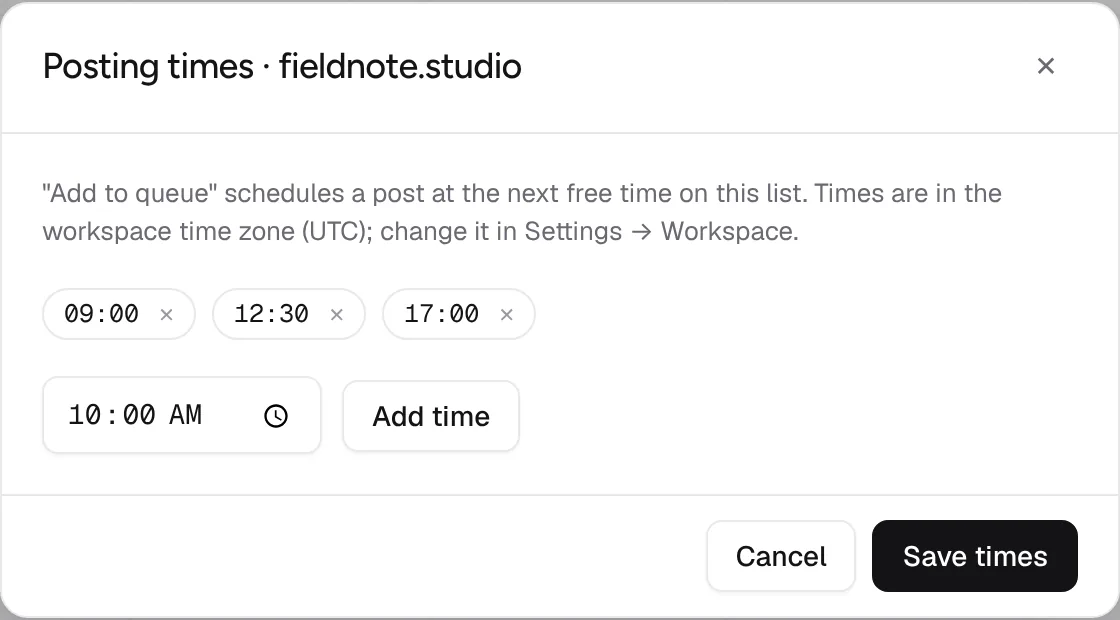
From then on, Add to queue in the composer schedules a post at the next free time on all the channels you picked. You decide what goes out; the queue decides when.
Step 3: Write each post once
Open the composer with + Create post, pick the channels, and write the post for all of them at once. The counters under the text show how many characters you've used on each network, so you can see right away if a post is too long for X.
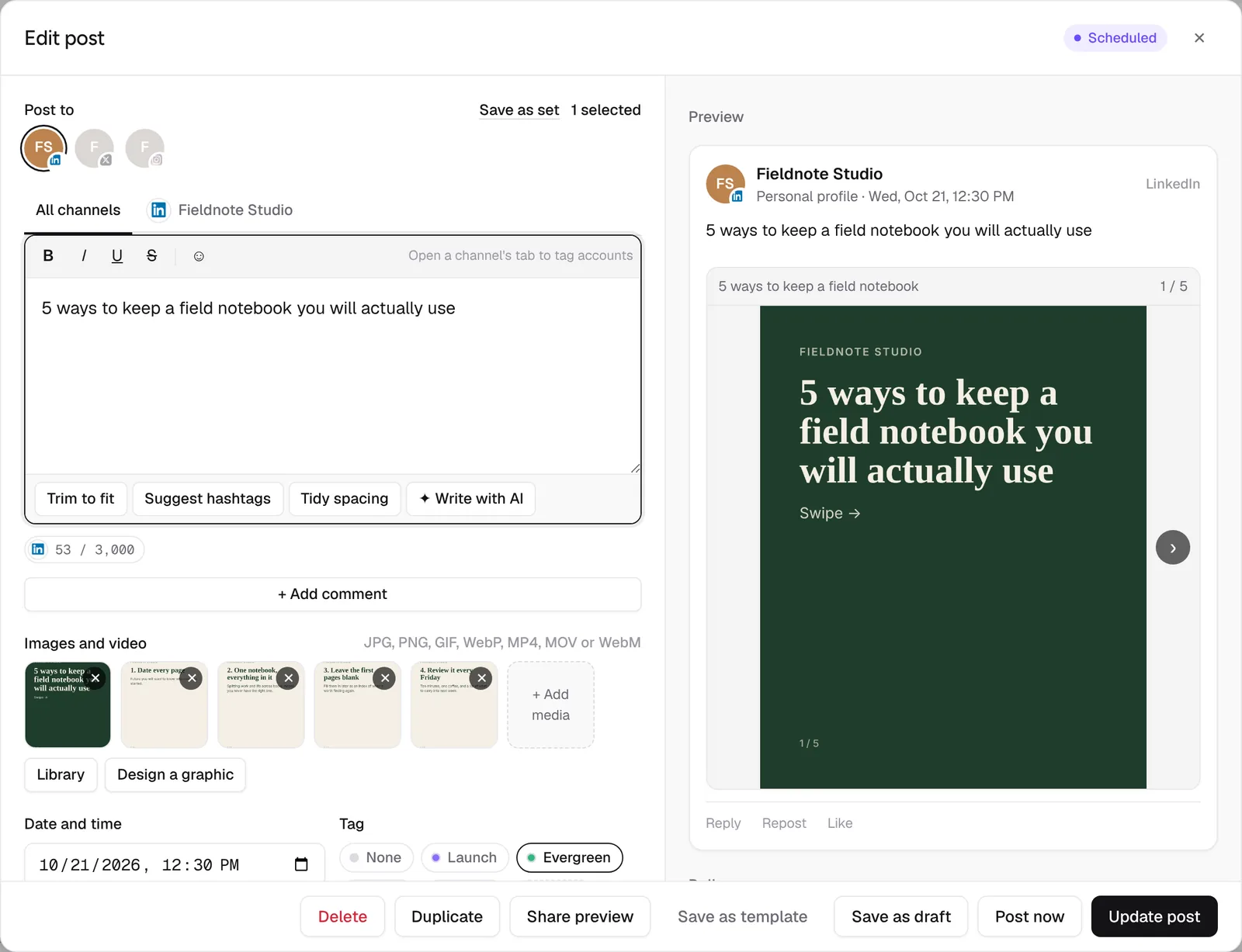
Add images or video, pick a tag (Launch, Evergreen, Event, Promo, or your own), then choose Add to queue. Repeat for the rest of the week's posts. If you've got a list of posts ready in a spreadsheet, you can also import them from a CSV file.
Step 4: Tailor it per network, only where it matters
Most posts work everywhere with small changes. When one doesn't, open that channel's tab in the composer and change the text, images or comments for that network only. A banner shows that the channel has its own version, and Back to global undoes it.
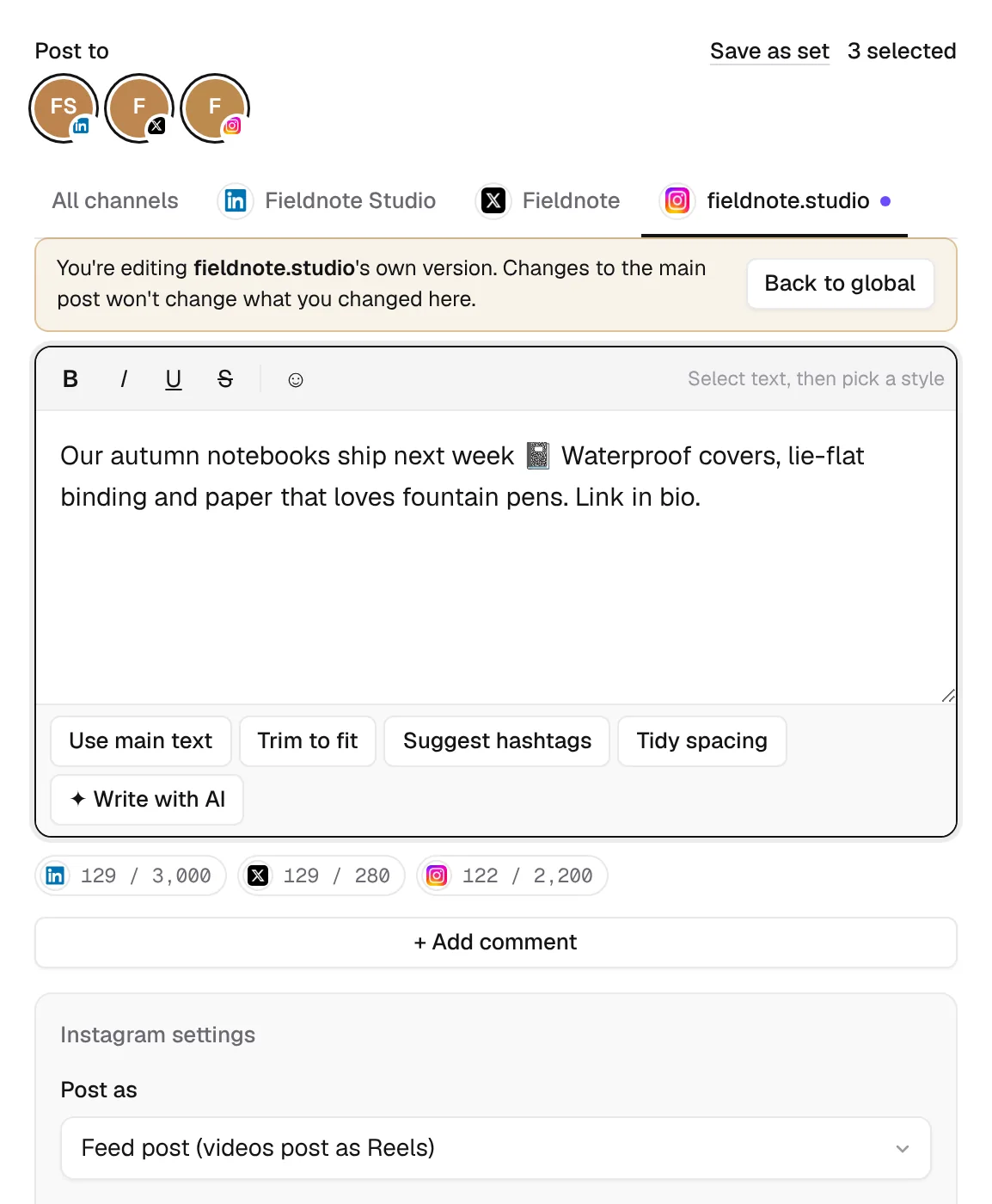
Good reasons to tailor a post:
- Instagram: links in captions aren't clickable, so say "link in bio" instead.
- X: the limit is 280 characters, so cut to the point, or turn the rest into a thread with + Add reply.
- LinkedIn: a little more context and a question at the end usually works better.
Step 5: Check the week on the calendar
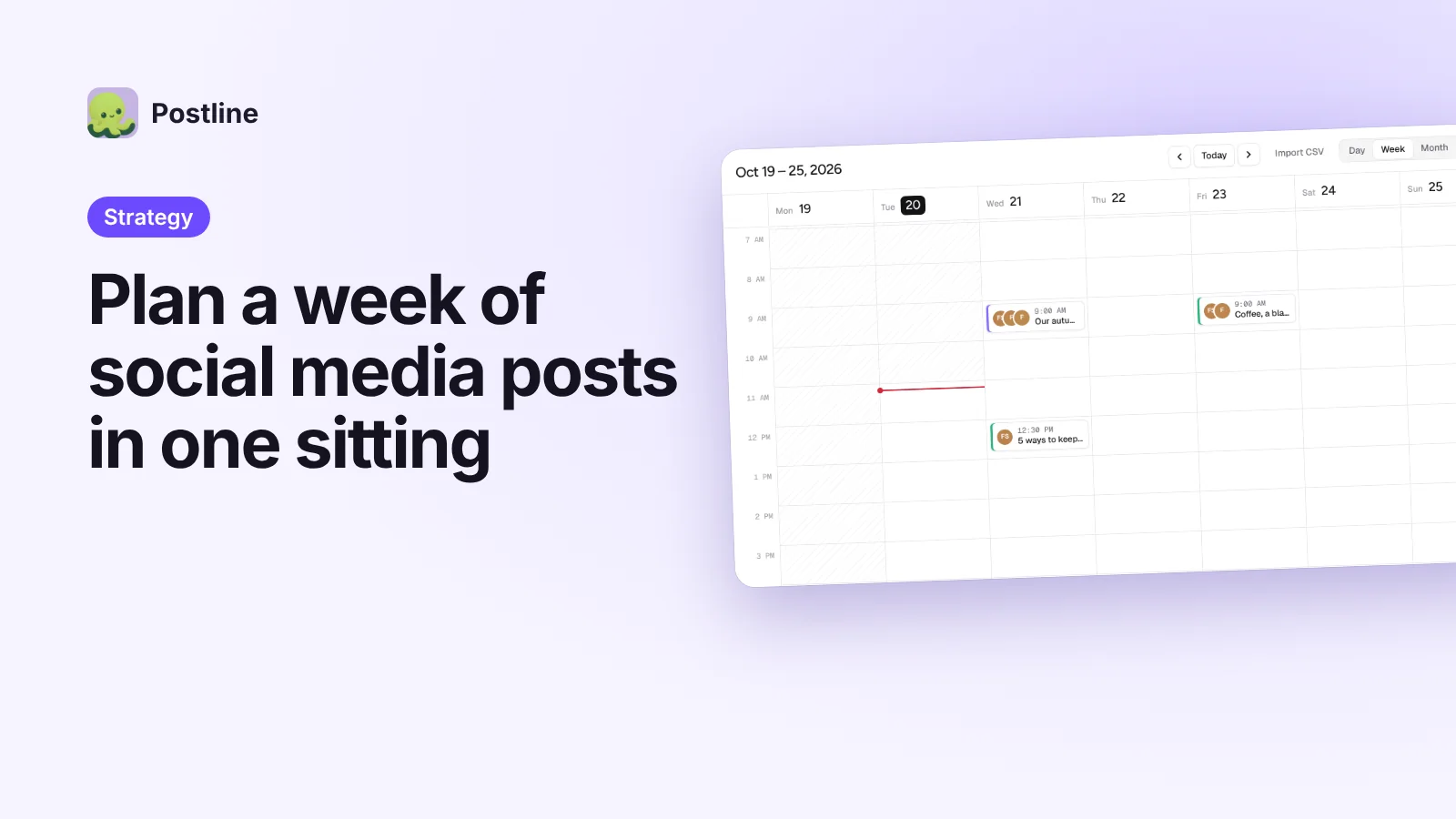
When you're done, look at the week on the calendar. Each post's color shows its tag, so you can see the mix at a glance: if every post is a promo, swap one for a tip.
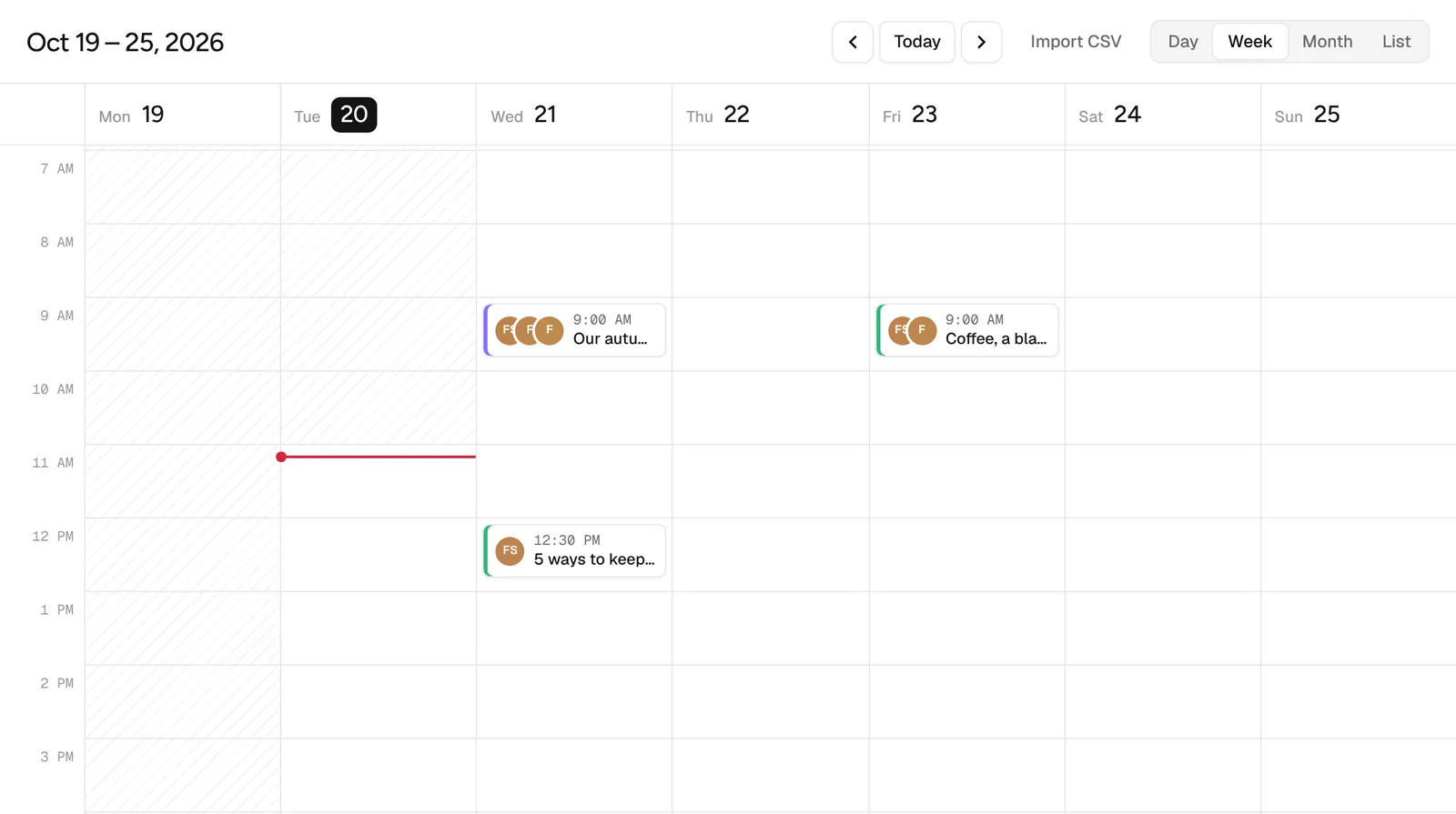
Drag a post to another day or time to move it. If someone else has to approve posts first, turn on Require approval for editors in Settings → Workspace, or send a client a Share preview link so they can comment and approve without an account.
Make next week even faster
- Save channel sets. If you often post to the same group of channels, choose Save as set in the composer and pick the set next time.
- Save templates for posts you write every week, such as a Monday tip with the same layout.
- Repeat evergreen posts. Set a post to repeat every few weeks, so your best content keeps working.
- Let the assistant draft a first version of the week. See how to schedule posts from ChatGPT or Claude.
Frequently asked questions
How many posts should I plan for a week?
Start with three to five that you can make well, and add more once the routine feels easy. Consistency matters more than volume.
What's the difference between Add to calendar and Add to queue?
Add to calendar posts at the date and time you pick. Add to queue picks the next free posting time on the channels you chose, based on the posting times you set for each one.
Can I plan more than a week ahead?
Yes. The calendar shows days, weeks and months, and you can schedule as far ahead as you like. A week is just a size that's easy to plan in one sitting.
What happens if a post fails?
Postline retries temporary errors automatically. If a post still can't go out, for example because a channel needs to be reconnected, it shows as failed on the calendar and you get a notification.

We build Postline, a social media scheduler for creators, teams and agencies. We write about planning, publishing and measuring social posts, and about how to get the most out of Postline.