
On this page
What a LinkedIn carousel isBefore you start: design the slidesStep 1: Write the post and add the slidesStep 2: Turn on the carouselStep 3: Check the previewStep 4: Schedule itPost the same slides on other networksIdeas for your next carouselFrequently asked questionsWhat a LinkedIn carousel is
A LinkedIn carousel is a post that people swipe through, one slide at a time, with a page count in the corner. They're popular for step-by-step tips, checklists, frameworks and short stories, because each slide holds one idea and people keep swiping to see the next.
There's one thing that surprises most people: LinkedIn's posting tools don't have an "image carousel" type for normal posts. Several images in one post show up as a grid. The swipeable posts in your feed are document posts, where every page of a PDF is a slide.
That's why carousels used to mean exporting a PDF from a design tool and uploading it by hand. In Postline you skip that step: you add the slides as images, and Postline builds the document when the post goes out.
Before you start: design the slides
Design each slide as its own image. A few rules make carousels much easier to read on a phone, where most people will see them:
- Use the same size for every slide. Portrait (1080 × 1350) takes up the most room in the feed. Square (1080 × 1080) also works well.
- Export as JPG or PNG. Carousels in Postline don't take GIF or WebP images.
- One idea per slide, in large text. If you have to zoom in to read it on your phone, it's too small.
- Number the slides or show a page count, so people know how far they've got.
- Make the first slide a headline. It's the only slide people see before they decide to swipe, so say what they'll get: "5 ways to keep a field notebook you'll actually use" beats "Notebook tips".
- End with a next step: follow for more, download the guide, or visit a link in the comments.
You can design the slides in any tool. Postline also has a simple designer: choose Design a graphic under Images and video in the composer.
Step 1: Write the post and add the slides
In Postline, choose + Create post and pick your LinkedIn profile or page under Post to. Write the text that goes above the carousel, then add the slides under Images and video in the order they should appear. You can upload them, pick them from your media library, or design them right there.
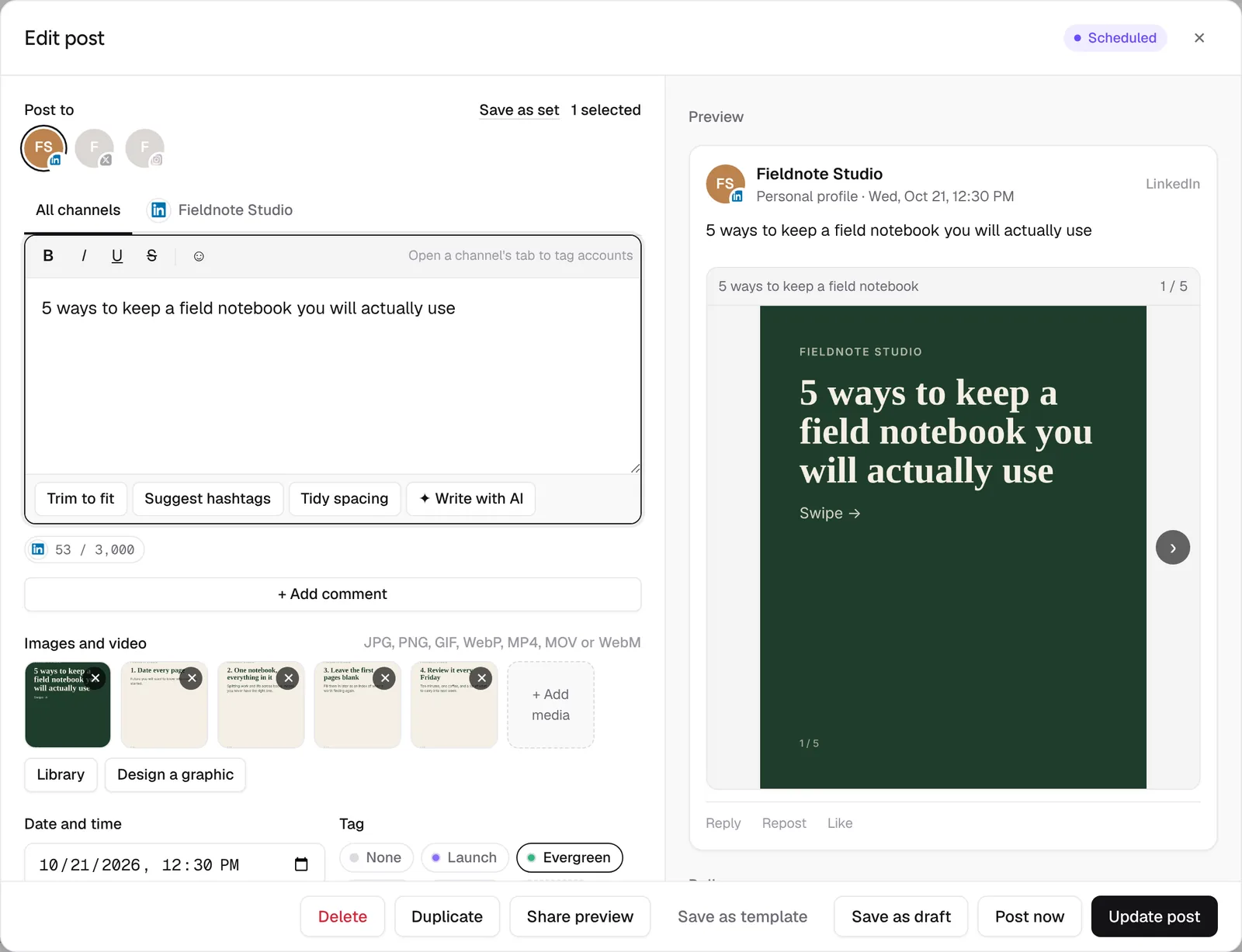
Without the carousel switch, LinkedIn shows up to 9 images as a grid. The next step turns them into a carousel instead.
Step 2: Turn on the carousel
Open the LinkedIn channel's tab, next to All channels, and turn on Post the images as a swipeable carousel. You can give the carousel a title, which LinkedIn shows above the slides. Without one, Postline uses the first line of your post.
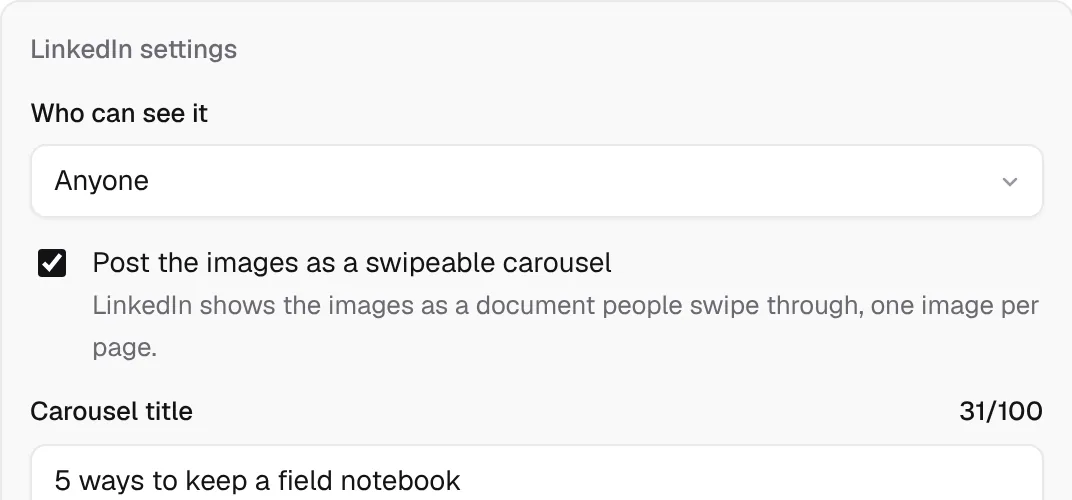
With the switch on, a post can have up to 20 slides.
Step 3: Check the preview
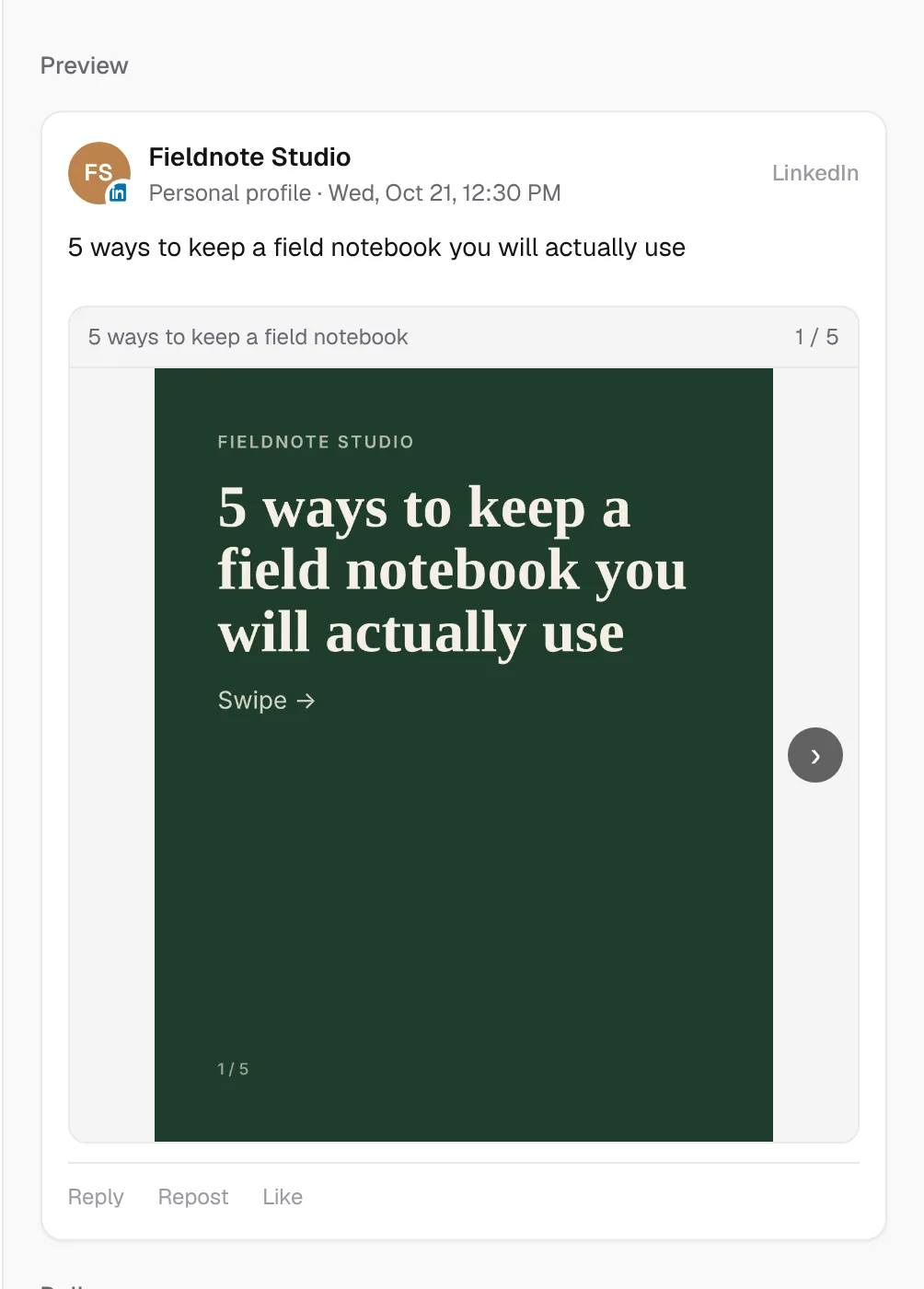
The preview on the right shows the post the way LinkedIn will: the text, then the carousel with its title and page count. Use the arrows to flip through the slides and check the order before it goes out.
Step 4: Schedule it
Pick a date and time and choose Add to calendar, or Add to queue to use the next free posting time for that channel. The carousel appears on your calendar like any other post, and you can drag it to another day if your plans change.
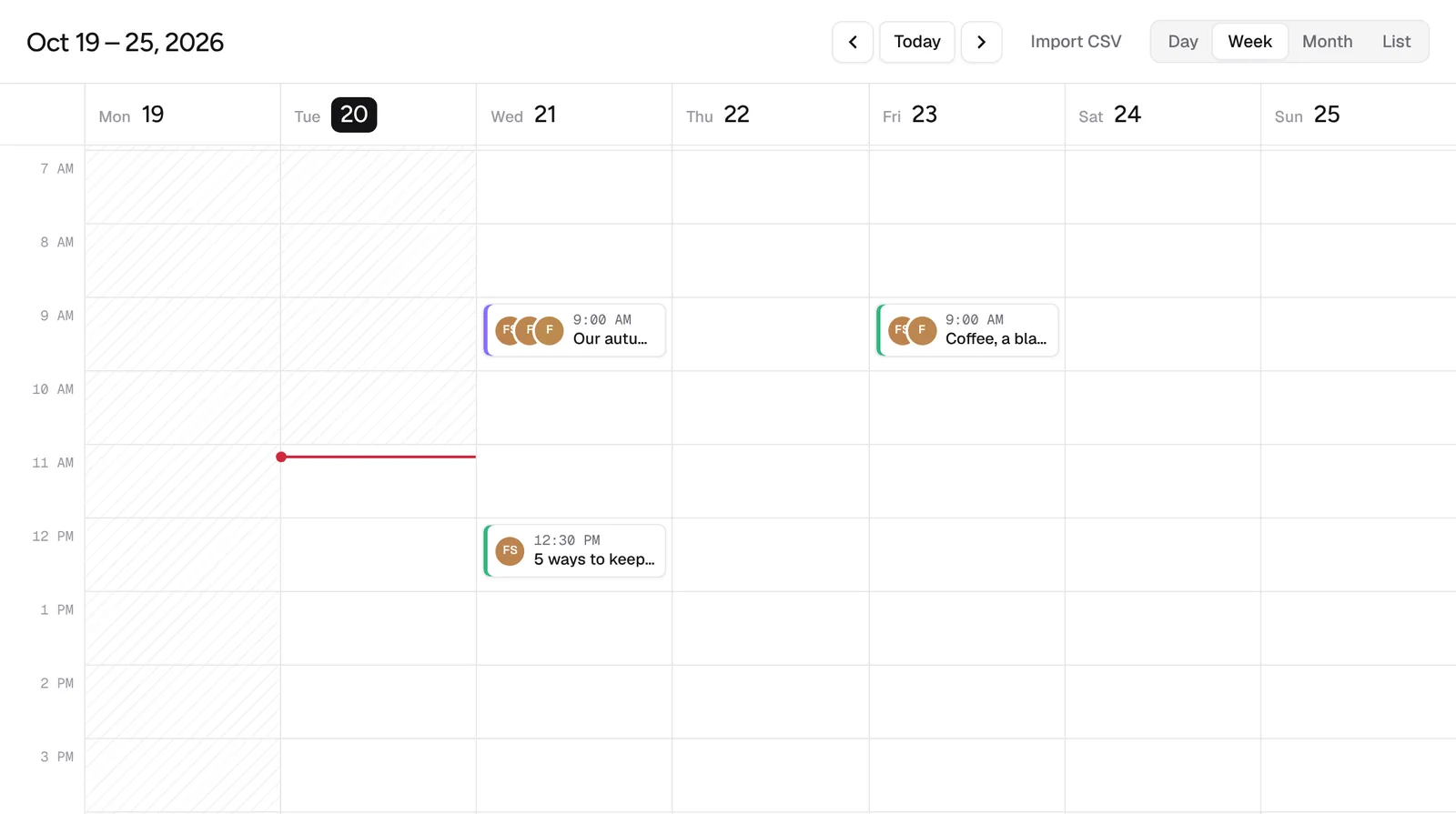
When it's time, Postline turns the slides into a document, one slide per page, uploads it to LinkedIn and publishes the post.
Post the same slides on other networks
Carousels work beyond LinkedIn. If you pick Instagram as well, the same slides go out as a normal multi-image post there (Instagram allows up to 10 images). Open each channel's tab to change the text or swap images for that network only. Everything you don't change follows the main post. See customizing a post per channel.
Ideas for your next carousel
- A checklist people will save: "7 things to check before you publish a blog post".
- A process broken into steps, one per slide.
- Before and after, with what changed in between.
- Mistakes to avoid, each with the fix on the same slide.
- A short story from your team, ending with what you learned.
Frequently asked questions
Can I upload a PDF I already made?
Not directly. Postline builds the document from images, so export each page of your PDF as a JPG or PNG and add them in order. That also means you can reuse the same slides on other networks.
How many slides can a carousel have?
Between 2 and 20 in Postline. Most carousels that do well are between 5 and 10 slides: enough to be worth swiping, short enough to finish.
Does it work for company pages?
Yes. The carousel switch is on both LinkedIn profiles and LinkedIn pages you manage.
Can I add a first comment to the carousel?
Yes. Choose + Add comment under the post text. Postline posts it as a comment right after the carousel, or after a delay you pick.
Why are some of my images rejected?
Carousels take JPG and PNG images only. Convert GIF and WebP images, or turn off the carousel to post them as a regular image post.

We build Postline, a social media scheduler for creators, teams and agencies. We write about planning, publishing and measuring social posts, and about how to get the most out of Postline.